 MrWorldwide
Keep your team’s time in the menu bar.
A city clock is useful when you work with someone in another time zone, call family abroad, or plan a trip. MrWorldwide keeps those clocks a click away, without a browser tab.
By Noaa. Updated October 28, 2026 for version 1.5.0.
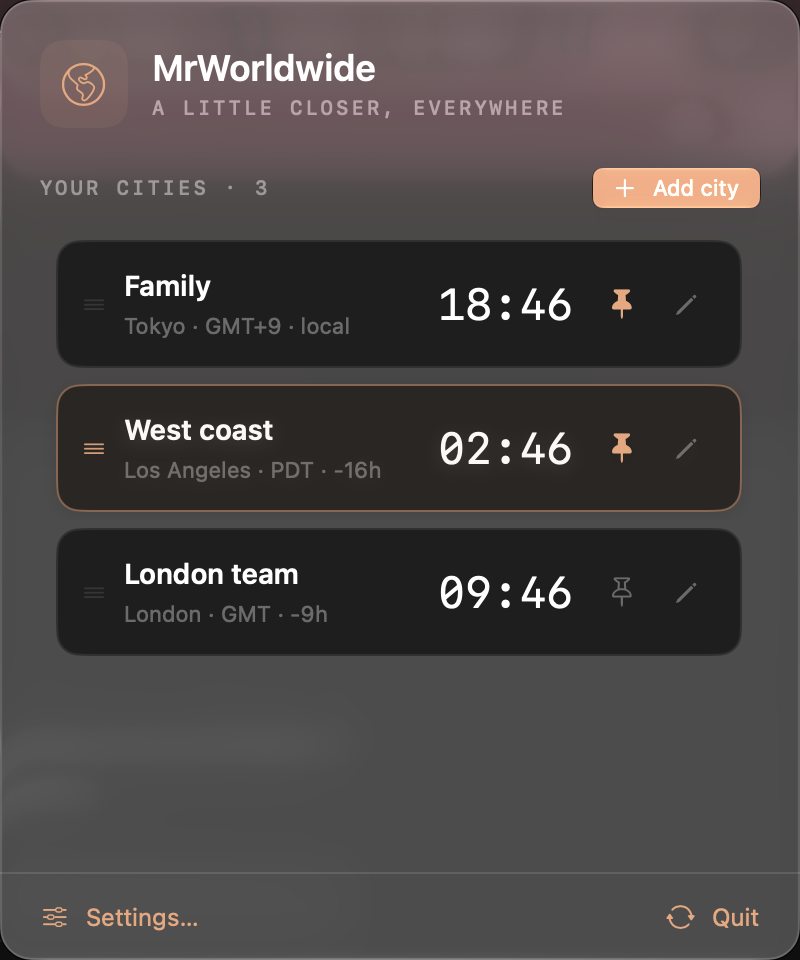
Install and open the app
Download the disk image, open it, and copy MrWorldwide to Applications. Open the app and look for its menu-bar item. This early release targets macOS 14 and later. If macOS reports a security or signature error, contact support rather than bypassing it.
Add a city for each place you follow
Open the menu-bar panel, choose Add city, and search by city name. Two cities are free. For example, start with your home city and the city where a teammate works.
Use names that mean something to you
Rename a clock to a person or team name. The city and zone details remain visible. Return saves the name; Escape cancels the edit. Reorder clocks to put the places you check most near the top.
Pin only the clocks you need at a glance
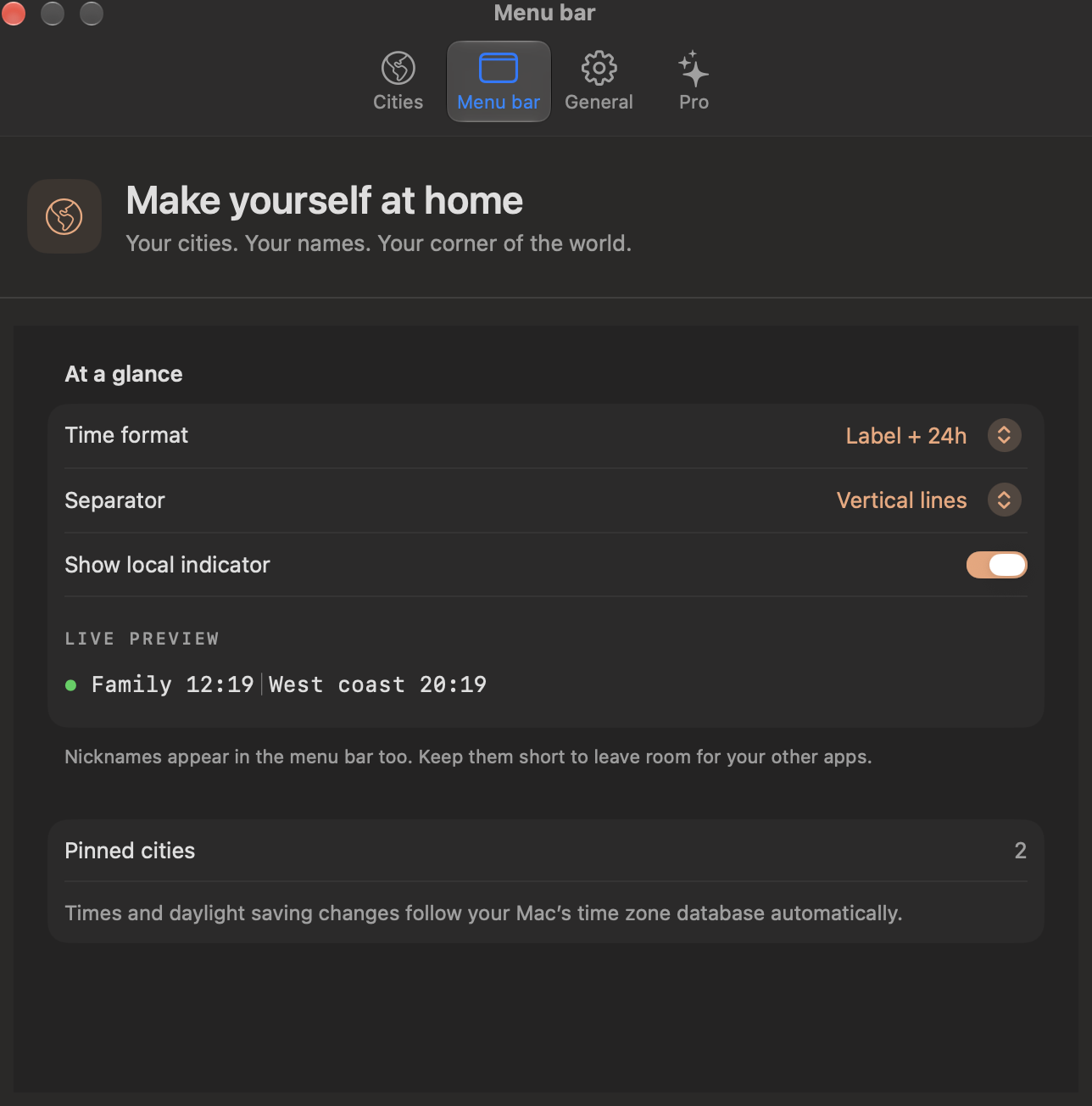
Use the pin beside a clock to include it in the menu bar. Keep names short and pin selectively, especially on a Mac with a notch or lots of menu-bar apps. The full list stays in the panel.
Check the day as well as the hour
A city may already be on tomorrow’s date, or still on yesterday’s. The app’s day-offset information helps you spot that difference. Time-zone rules follow macOS’s time-zone database, so keep your Mac updated.
Do you need Pro?
If two cities cover your needs, use the free version. Pro adds unlimited cities for $1 USD once on two personal Macs. Open Pro in the app to purchase through Polar, then paste the license key from your purchase to activate it.
Connect your agent through MCP
MCP connections are in development for the next release. The current download works on its own and does not include the new MCP server.
In an MCP-enabled release, open Settings → General → AI connections, choose your desktop agent and press Connect. Complete setup in the agent, then ask it to discover the app’s tools. For example: “Add Singapore and nickname it Team.” Normal free and Pro limits apply. Turn off Allow MCP control in Settings to reject further calls.
Spot your local clock
Coming in the next release: a green dot marks pinned clocks matching your Mac’s current time zone. It follows the Mac’s time-zone setting without location permission. Settings → Menu bar → Show local indicator is on by default; turn it off whenever you like.
Already bought Pro?
Find your purchase and license
Open Pro in the app and choose Manage purchase to open the Polar customer portal. Use the email address from your purchase. Paste your license key into the app’s License key field, then choose Activate Pro. Keep the full key private.
Move to another Mac
Pro allows two personal Macs. On a Mac you no longer want to use, open Pro and choose Deactivate this Mac, then confirm. Deactivation requires a connection. Your saved cities stay on that Mac; they do not transfer with the license. If you cannot access the old Mac or activation is declined, use Manage purchase or contact support before buying again.
Recover a rejected license
Check license asks the service to verify your saved activation. If it is rejected, Forget rejected license removes that rejected local record so you can enter a key again. This keeps your city list and does not free a device slot in Polar. A temporary connection failure alone does not remove a previously verified permanent purchase.
Get help without sharing your key
Tell support your app version, macOS version, what you tried, and the error message. Please leave full license keys, passwords and payment-card details out of messages and screenshots.
Early-release testing
The app and installer are signed and Apple-notarized. Clean-Mac first launch, installed updater replacement, and macOS 14 / Intel runtime checks remain outstanding. The product page shows real app captures using fictional demo city names.