 Talk a Lot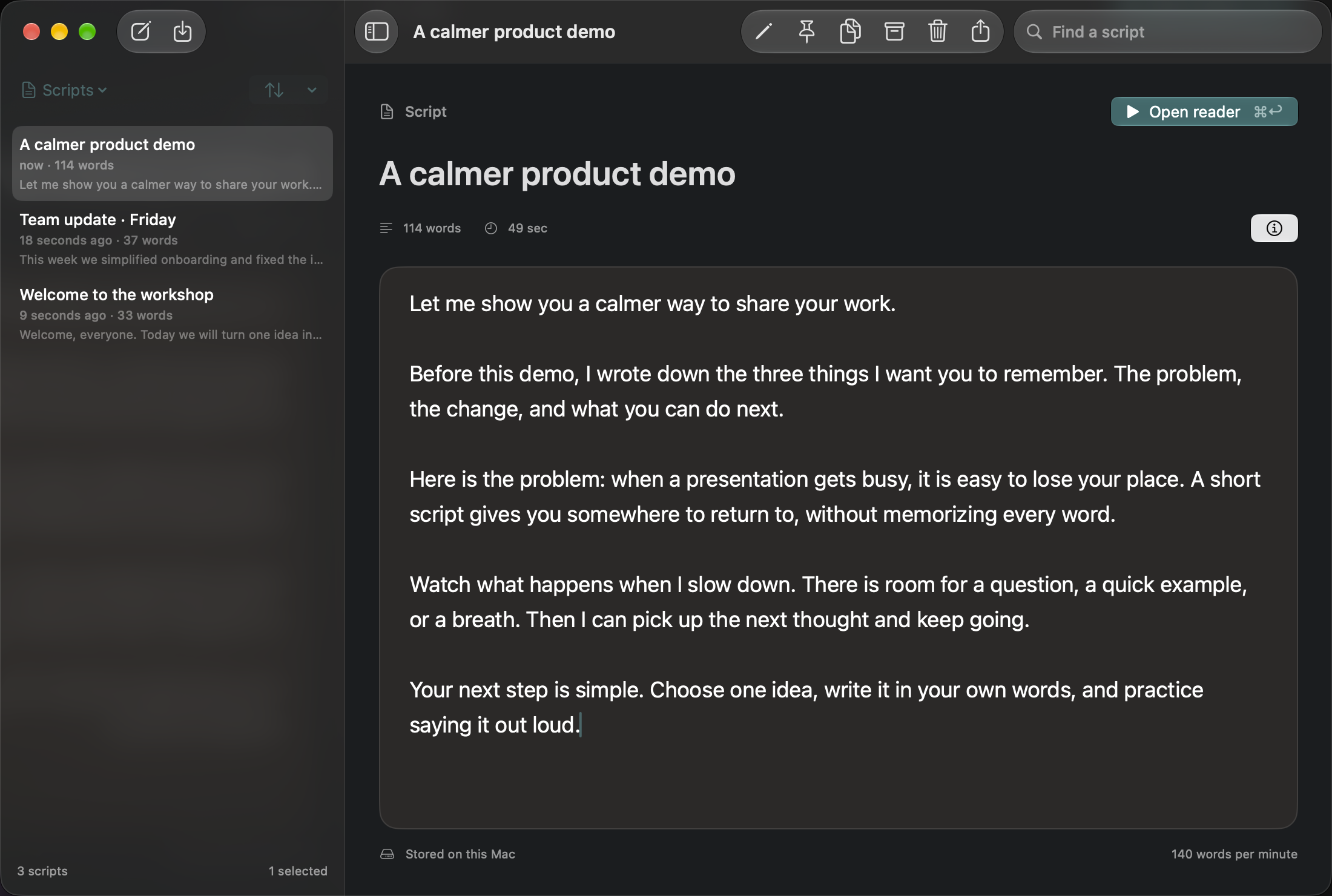
A good product demo needs a clear sequence: what the viewer is trying to do, the action you take and the result they should notice. Writing that sequence first makes it easier to explain the product without narrating every mouse movement.
Give each segment one job
Create a script for the opening or a short part of the walkthrough. Name it after the task, such as “Create a project: opening.” Describe the result in everyday language before explaining the controls. Use short paragraphs to separate the problem, action and outcome.
We need a place to keep the next three tasks together. I will create a project, give it a name the team recognizes, and add the first task. When we are done, everyone will have the same starting point for the week.
Replace this example with actions your own product can actually perform. Rehearse against the same data you plan to show, and avoid displaying private customer information.
Choose narration or live interaction
Talk a Lot pauses when you switch apps, including when you click the product you are demonstrating. It does not automatically resume when you return. Plan around that behavior rather than expecting continuous playback while operating another app.
One option is to record the spoken introduction with Talk a Lot active, pause the reader, demonstrate the action, and return for the explanation. Another is to record narration separately and combine it with a screen recording in your editor. For a live walkthrough, leave a short passage paused as a reference and explain the action in your own words.
Rehearse the handoffs
Open the reader, adjust the font and speed, and practise the opening aloud. Stop at the point where you need to interact with the product. Perform the action, return to the reader, and start the next passage deliberately. Rehearse that transition as carefully as the spoken part.
Scripts up to 500 words work on Talk a Lot’s forever-free tier. You can keep unlimited scripts, which is useful for organizing separate rehearsals.
Check the capture before the full take
Make a short recording using the exact display or window capture mode you intend to use. Review whether the reader is visible and whether the narration matches the action. A floating window does not guarantee capture exclusion. Talk a Lot itself does not record video.
Keep an exported text copy of the narration for editing and accessibility work later. If this is your first rehearsal, start with the Talk a Lot walkthrough.